Ticket Process Category Overview#
Process Category Overview#
Overview#
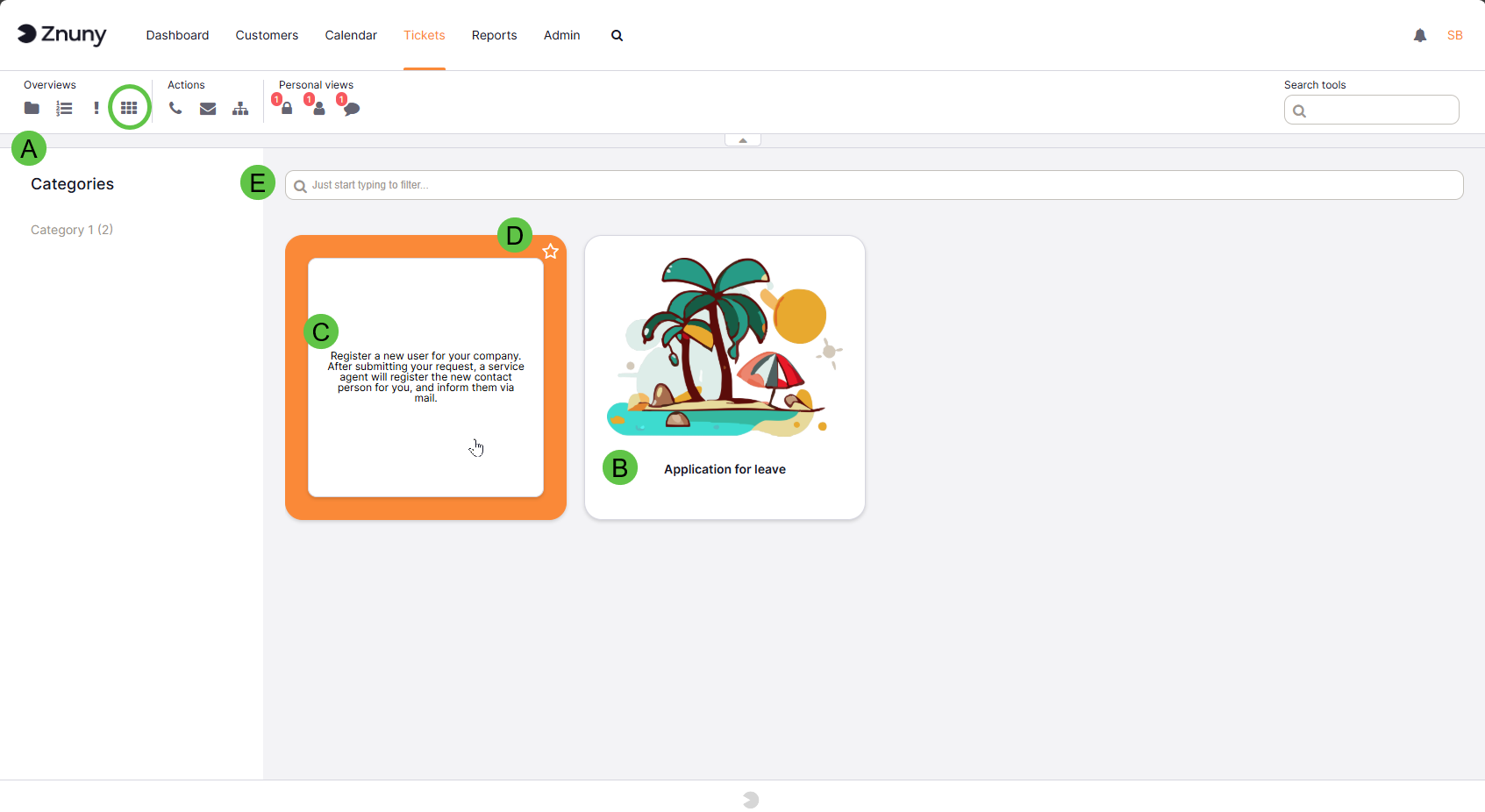
The Ticket Process Category view provides a tile-based gallery of all available ticket processes. It is designed to help agents quickly discover, filter and launch processes that are used to create or categorize tickets. Each tile represents a single process and can contain an image, the process name and a short description.
Key features#
Browse and filter process categories to show only tickets assigned to a selected process.
Visual tiles with optional images and descriptions for fast recognition.
Favorite processes for quick access.
Search bar for instant filtering of displayed processes.
Left-hand categories list that displays available process category groups and counts.
Using the view#
A. Selecting a category#
B. Tile components#
Each tile typically contains:
Process image (optional) — a visual representation of the process.
Process name — displayed beneath the image.
Description — shown on mouseover or when the card flips to the reverse side.
Favorite star — toggle to add or remove the process from your favorites.
Status badges (optional) — e.g., counts or indicators such as “active” or “deprecated”.
C. Mouseover and card flip#
Hovering the pointer over a tile will flip the tile (or reveal a tooltip) to show the process description and quick actions (if available).
D. Favorites and personal view#
Mark a process as a favorite using the star on the top-right of the tile.
Favorite processes are available in your personal favorite category,
Note
If no process is marked as a favorite, then the favorite category is not shown.
E. Filtering and searching#
Use the search bar at the top to quickly find processes; typing filters the tiles in real time.