Appointment Notifications#
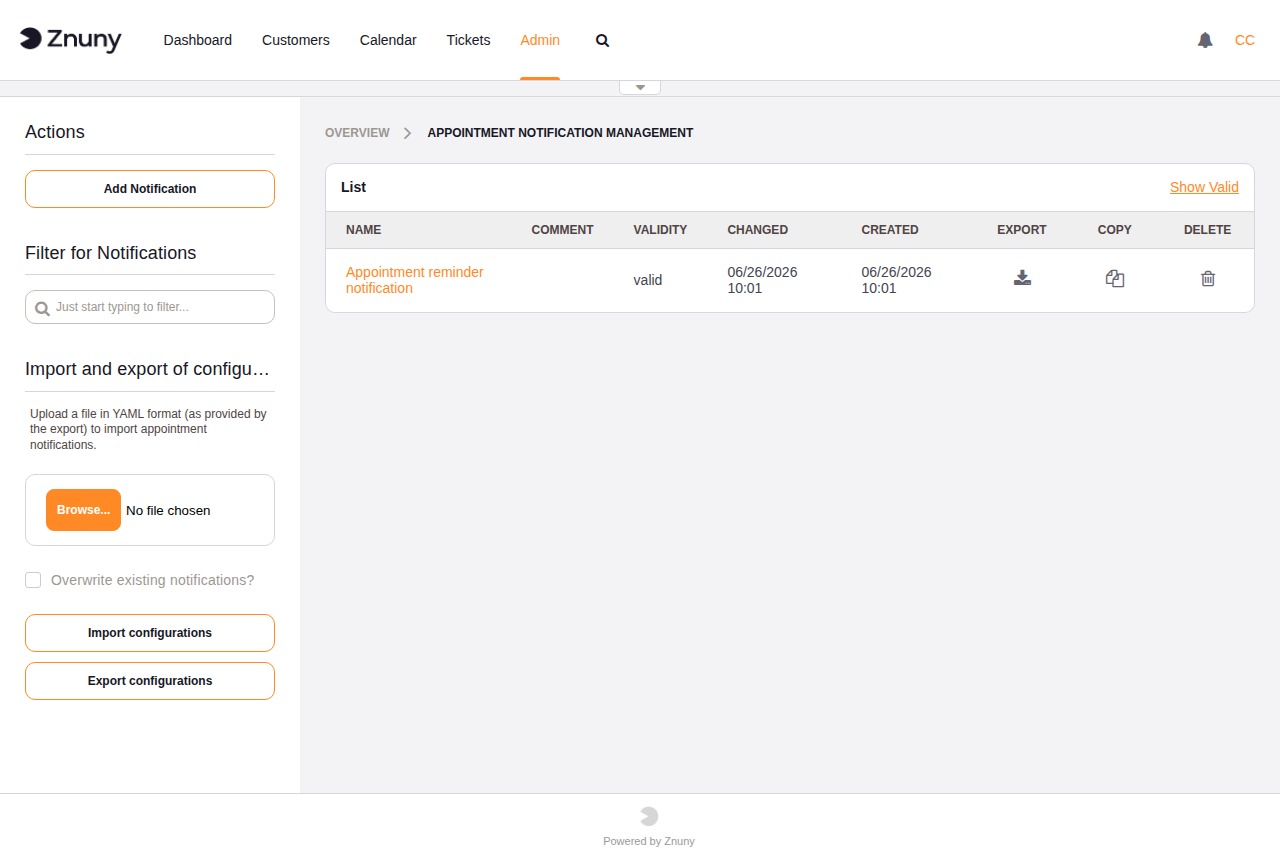
Appointment notification events define when and how agents are alerted about calendar activity — for example, when an appointment is created, updated, or about to start. Each notification event combines an event trigger, optional appointment filters, a recipient list, one or more transport methods, and per-language message templates.
The overview lists all configured notification events with their name, validity, and row actions. Use the Add Notification button in the sidebar to create a new event, Export configurations to download all notifications as a YAML file, or Import configurations to upload a previously exported file.
Creating and Editing a Notification#
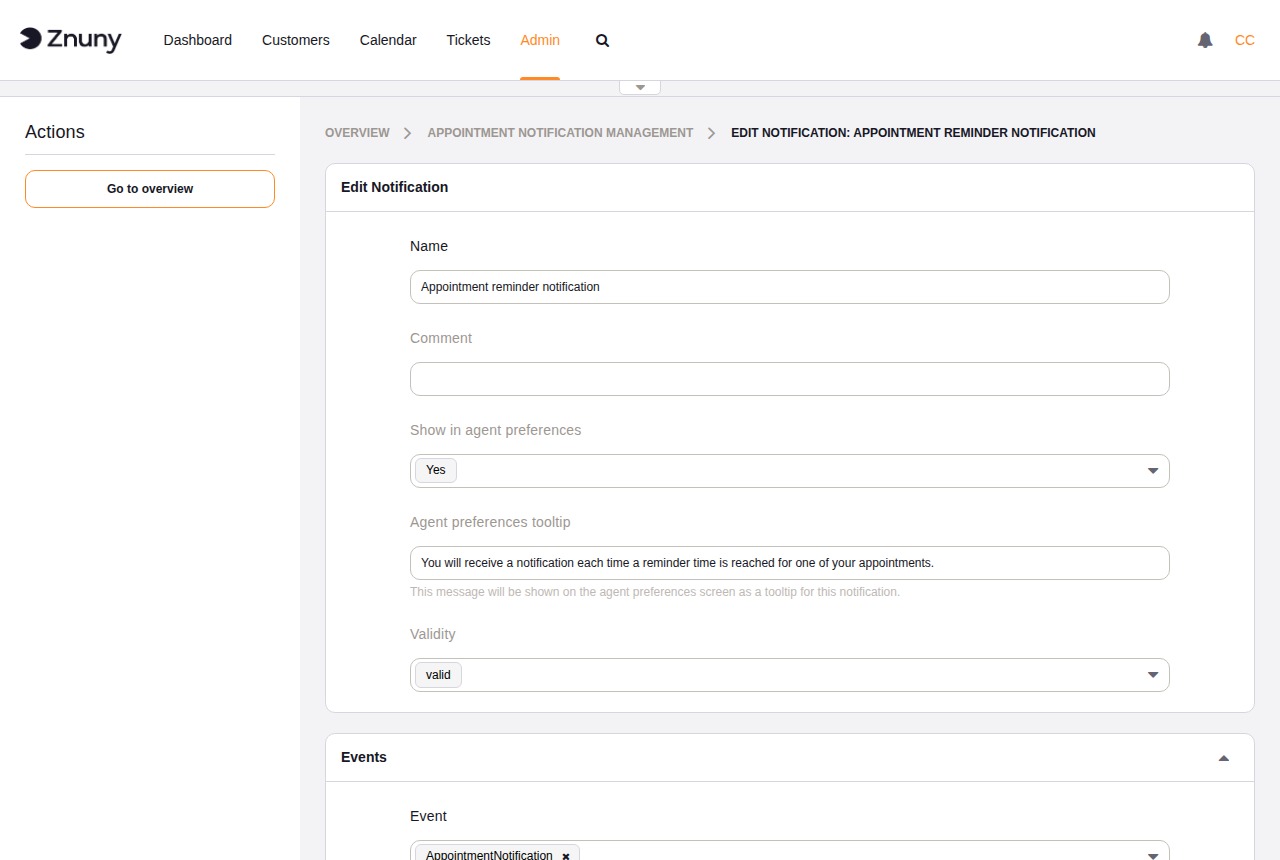
Basic Settings#
Field |
Description |
|---|---|
Name |
Required. Unique name for this notification event. |
Comment |
Optional. Short internal note. |
Show in agent preferences |
When enabled, agents can activate or deactivate this notification in their personal preferences. |
Agent preferences tooltip |
Optional hint text shown to agents in their preference screen to explain what this notification does. |
Validity |
Controls whether the notification event is active. |
Event |
Required. One or more events that trigger this notification. See the event reference below. |
The following events are available:
Event |
Fires when … |
|---|---|
CalendarCreate |
A new calendar is created. |
CalendarUpdate |
An existing calendar’s settings are changed. |
AppointmentCreate |
A new appointment is created in any calendar. |
AppointmentUpdate |
An existing appointment is modified (title, time, description, or any other field). |
AppointmentDelete |
An appointment is deleted. |
AppointmentNotification |
An appointment reaches its configured reminder time. This event is triggered by the Znuny daemon on a schedule, not by user interaction. |
Multiple events can be selected for a single notification rule. A notification with the Appointment Filter set will only fire when the matching appointment or calendar also satisfies those filter conditions.
Appointment Filter#
All filter fields are optional. When set, the notification fires only when the appointment matches every configured filter.
Filter |
Description |
|---|---|
Calendar |
Limit to appointments in a specific calendar. |
Title |
Match on the appointment title. |
Location |
Match on the appointment location. |
Team |
Match on the assigned team (requires the Team module). |
Resource |
Match on the assigned resource. |
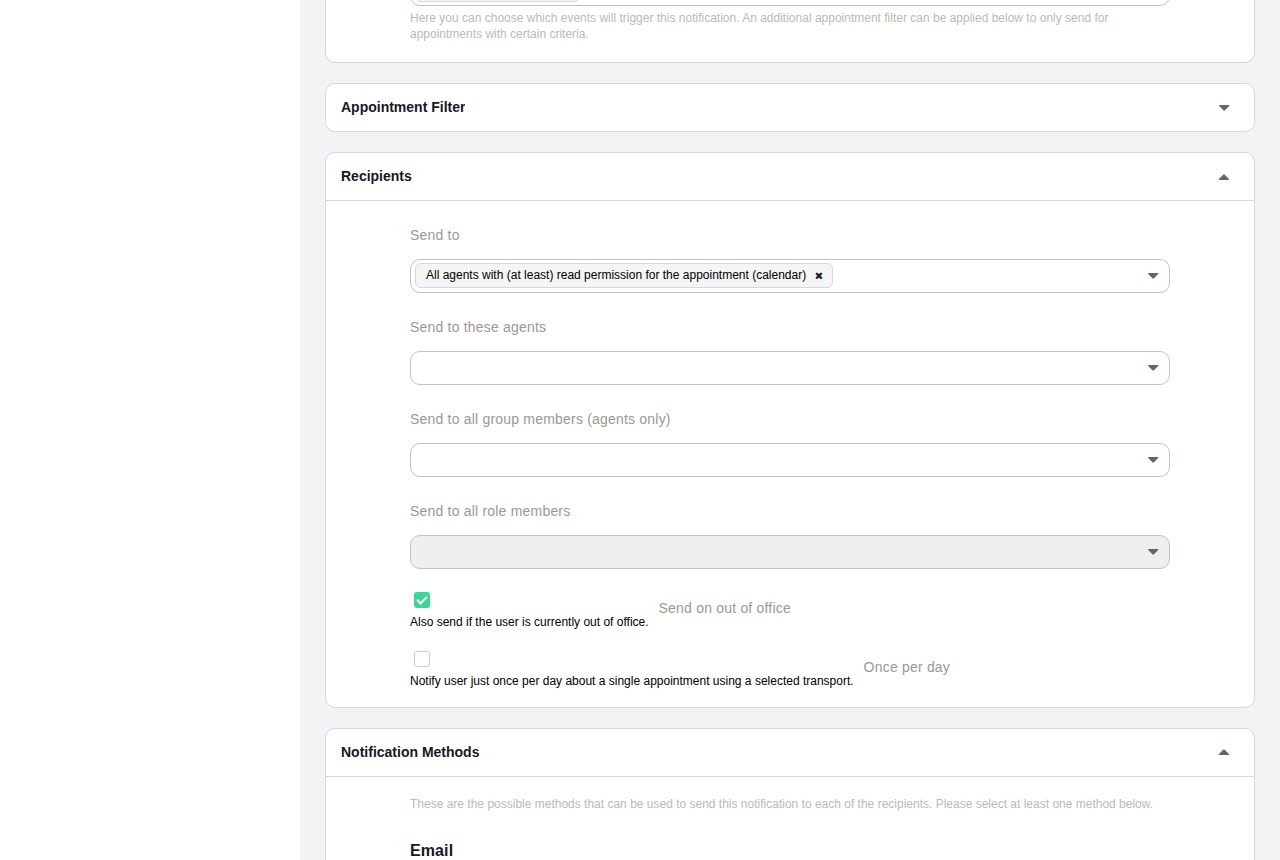
Recipients#
Field |
Description |
|---|---|
Send to |
Predefined recipient groups such as the appointment creator or all agents with calendar access. |
Send to these agents |
One or more specific agents. |
Send to all group members |
All agents who are members of the selected groups. |
Send to all role members |
All agents who hold the selected roles. |
Send on out of office |
When enabled, agents who have an active out-of-office setting still receive the notification. |
Once per day |
When enabled, at most one notification per appointment per day is sent through each transport. |
Additional email address |
Free-text email address to include as a recipient. |
Notification Methods#
Each available transport (for example, Email) appears as a separate block. Each block has an Enable this notification method checkbox and an Active by default in agent preferences checkbox that controls whether the transport is pre-selected when agents view this notification in their preferences.
Notification Text#
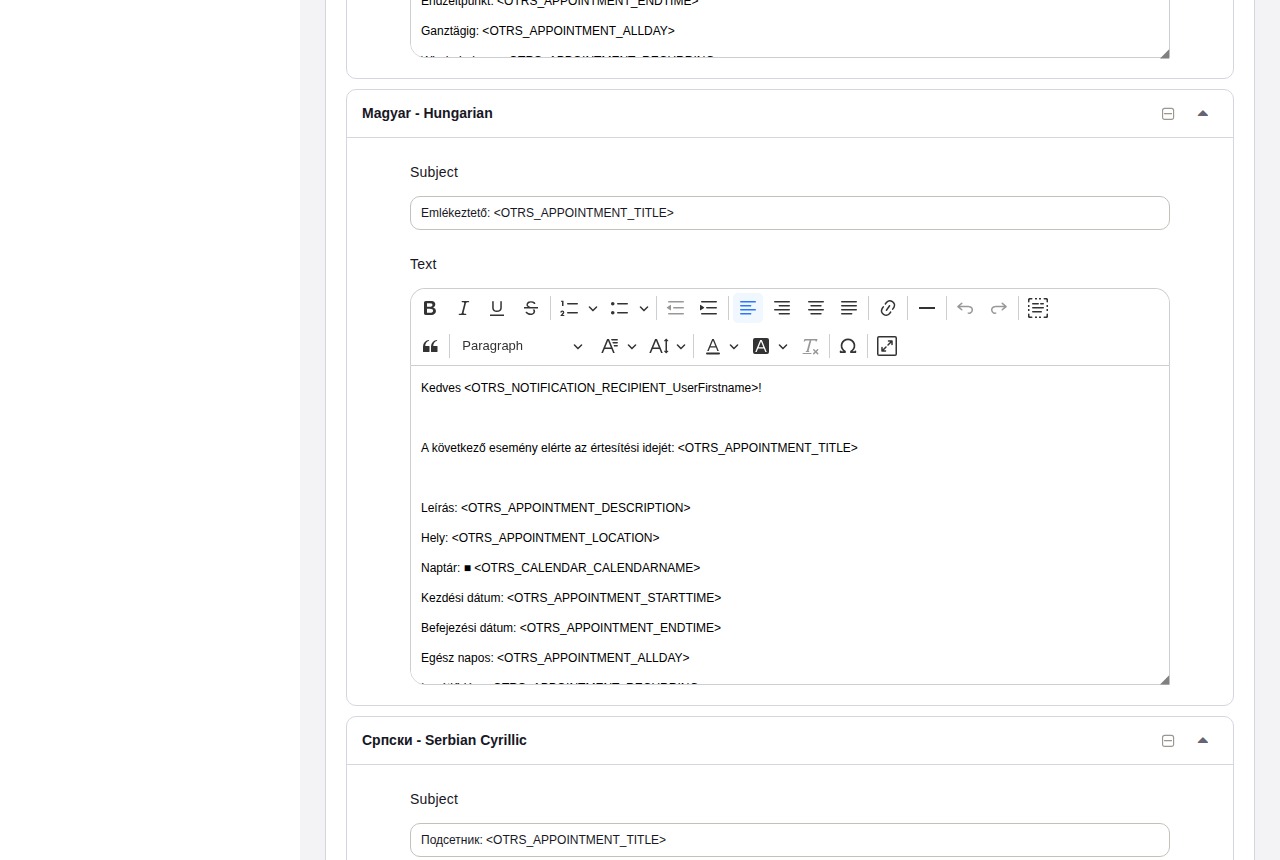
Add one message template per language. Each template requires:
Subject — the notification subject line.
Text — the notification body, which supports rich-text formatting and smart tags (for example,
<ZNUNY_APPOINTMENT_TITLE>).
Click Add new notification language to add a template in another language. Click Remove Notification Language to delete an existing language block.
Copying and Deleting Notifications#
Copy (row icon) — creates a duplicate notification with a compounding suffix (
<name> (copy) 1, then<name> (copy) 1 (copy) 2). To avoid chained suffixes, always copy from the original notification.Delete (row icon) — removes the notification immediately. Unlike ACLs, notifications do not need to be set to Invalid before they can be deleted.