Managing Calendars#
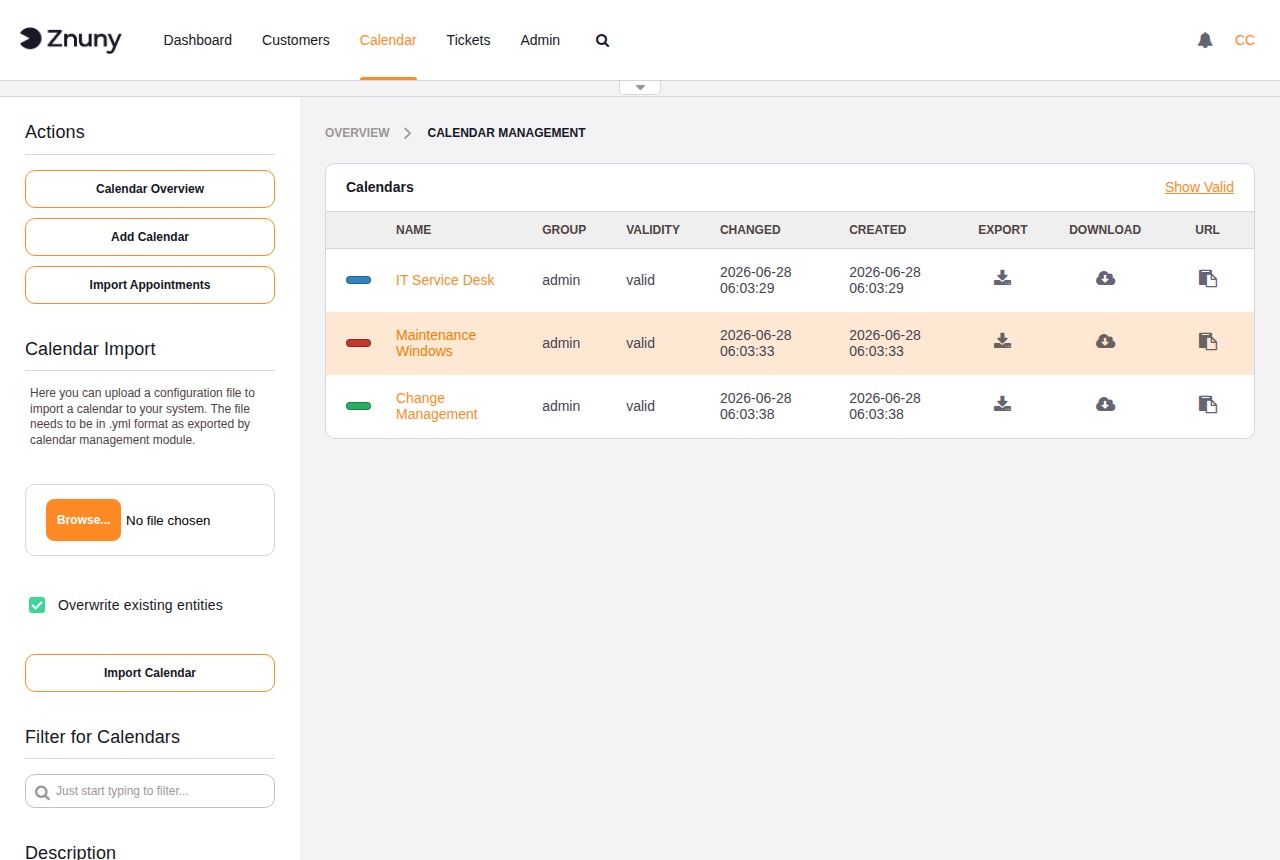
The Calendar Management screen lists all configured calendars with their name, colour, permission group, validity, and available row actions. Use the Add Calendar button in the sidebar to create a new calendar, or the Import Calendar button to upload a previously exported YAML file.
Creating and Editing a Calendar#
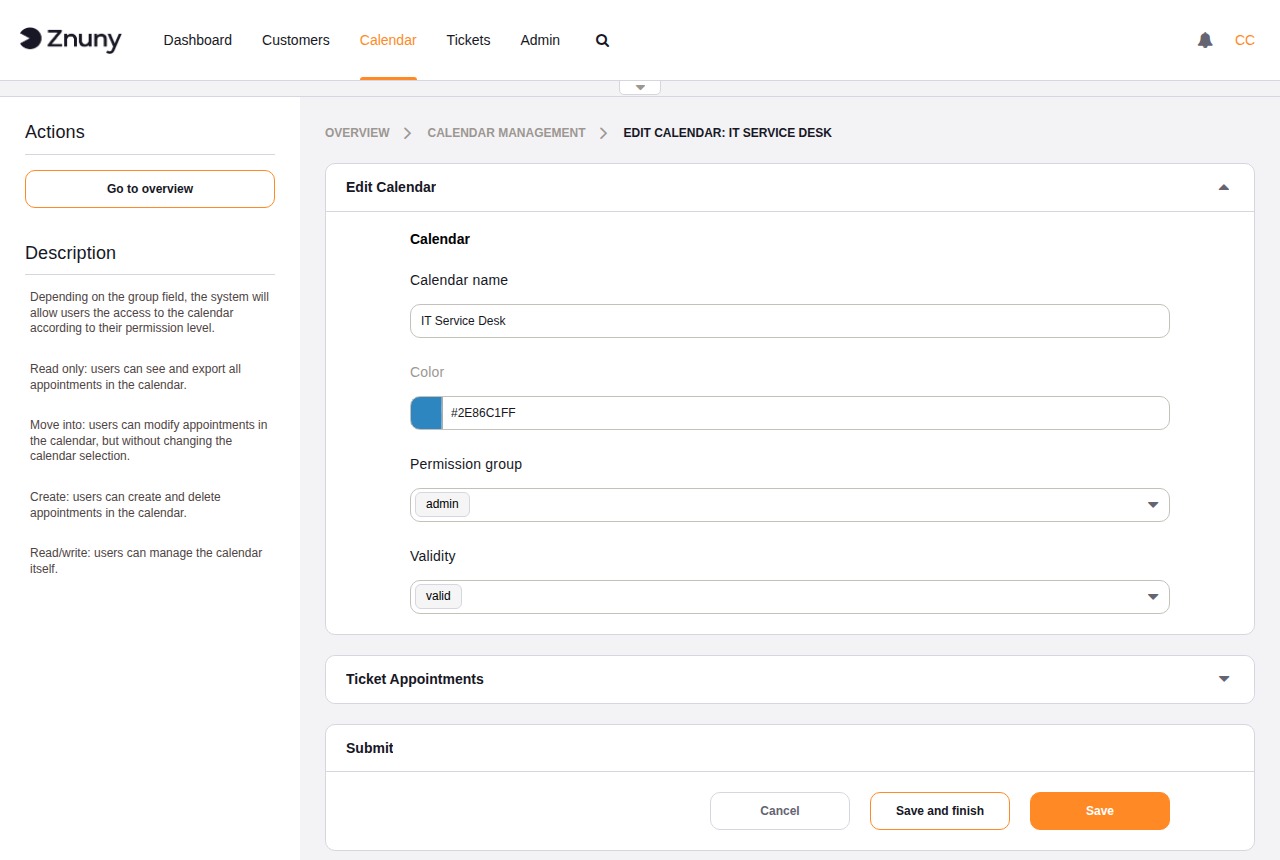
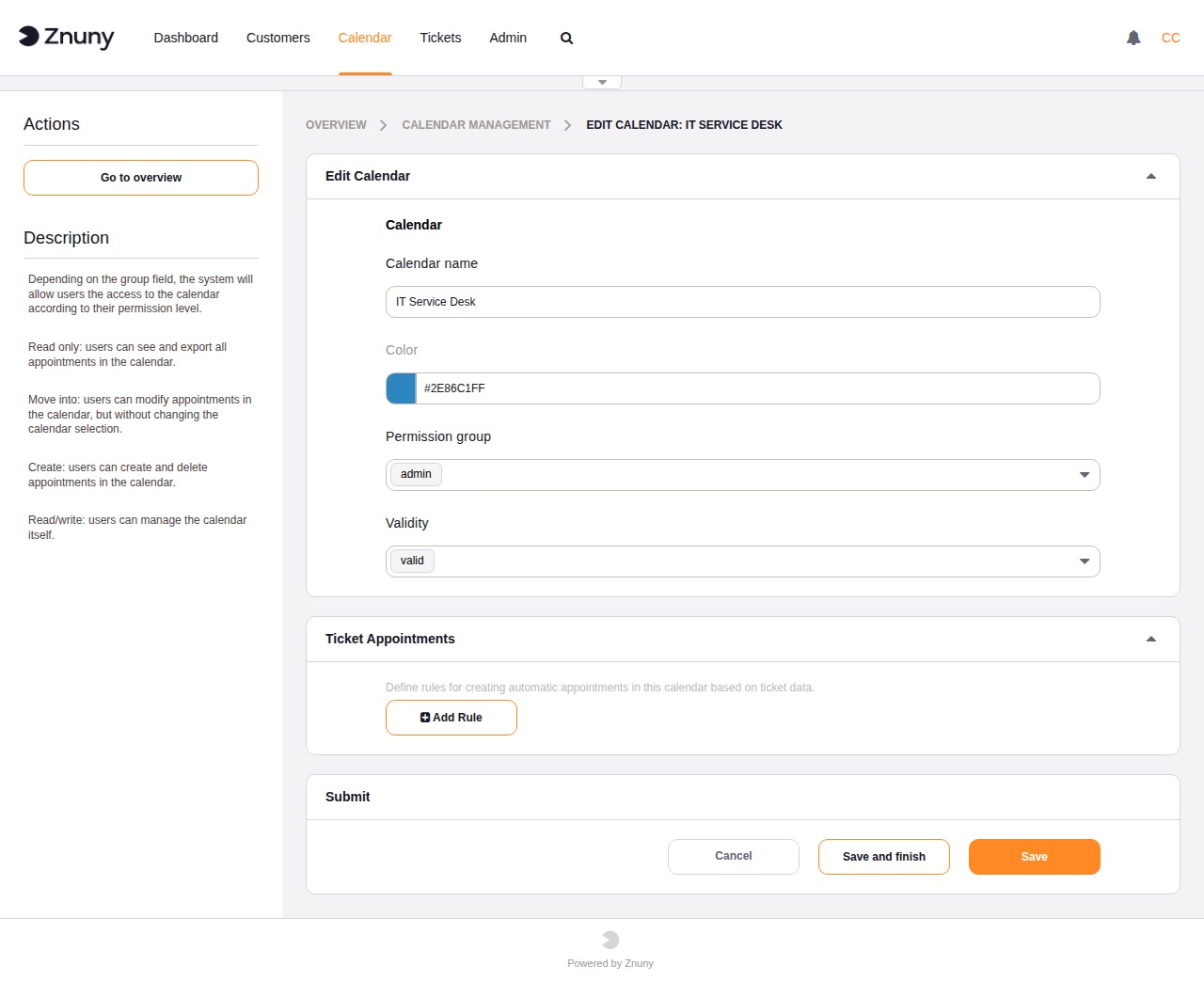
The calendar edit form contains two sections: general settings and ticket appointment rules.
General Settings#
Field |
Description |
|---|---|
Calendar name |
Required. Display name shown in all calendar views and agent screens. |
Color |
Required. Pick from the colour palette. Used to visually distinguish this calendar from others in the agent interface. |
Permission group |
Required. Only members of this group can view and create appointments in this calendar. |
Validity |
Controls whether the calendar is available in the agent interface. |
Buttons: Save and finish saves and returns to the overview. Save saves without navigating away. Cancel discards all unsaved changes.
Ticket Appointments#
Ticket appointment rules automatically synchronise appointment data with tickets. When an appointment in this calendar matches a rule, the rule writes the appointment start and end dates back to the linked ticket (or creates a new appointment when the ticket is updated).
Each rule is independent. A calendar can have multiple rules targeting different queues or date field combinations.
Field |
Description |
|---|---|
Queues |
Required. The rule applies only to tickets in these queues. |
Start date |
Required. Which ticket field provides the appointment start time. |
End date |
Required. Which ticket field provides the appointment end time, or a relative duration from the start. |
Search attributes |
Optional. Additional ticket attribute filters (such as ticket type, owner, or a dynamic field value) that further narrow which tickets this rule applies to. |
Click Add Rule to add a new rule row. Click Remove on a rule row to delete it. Rules take effect after saving the calendar.
Importing and Exporting Calendar Configurations#
Calendar configurations can be transferred between Znuny instances using YAML files.
Export calendar (row icon in the overview) — downloads a YAML file containing the calendar configuration. This file captures the name, colour, group, validity, and ticket appointment rules.
Import Calendar (sidebar button) — uploads a YAML file produced by an export. When the Overwrite existing entities? checkbox is checked, an imported calendar with the same name replaces the existing one. When unchecked, the existing calendar is left unchanged and the import is skipped for that entry.
Note
Export and import operate on calendar configuration, not on appointment data. To import appointments from an iCal file, use the Import Appointments screen.